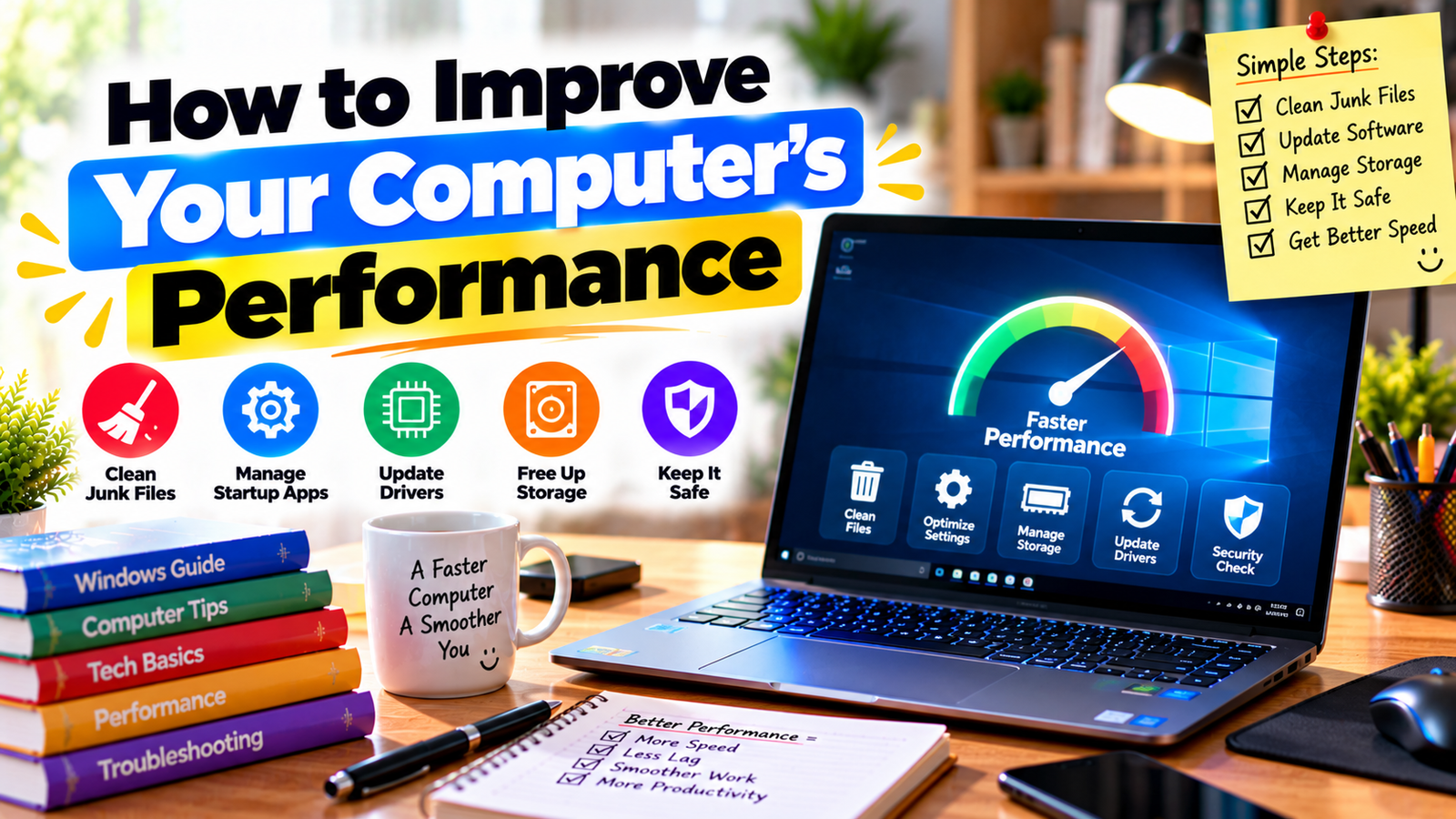
A slow computer can make everyday tasks frustrating. Whether I am browsing the internet, working on documents, attending online classes, editing photos, or managing files, I expect my computer to respond quickly and run smoothly. However, computers can become slower over time because of unnecessary programs, limited storage space, too many background processes, outdated software, or aging hardware.
The good news is that improving computer performance does not always require buying a new device. A few simple maintenance steps can help make a computer more responsive and reliable. Understanding the cause of slow performance is important because the right solution depends on the problem.
In this guide, I will explain how to improve your computer’s performance using practical methods that beginners can follow. These tips are especially useful for Windows users, although some general recommendations also apply to other operating systems.
1. Restart Your Computer Regularly
One of the simplest ways to improve computer performance is to restart the device regularly. Many users leave their computers running for days without restarting them, especially when they use sleep mode instead of shutting down.
During normal use, applications and background processes consume memory and other system resources. Occasionally, a program may stop responding correctly or continue using resources unnecessarily.
Restarting the computer closes running applications and starts a fresh system session. This can resolve temporary software problems and improve responsiveness.
When my computer begins running slowly, I usually start with a restart before trying more complicated solutions. It is quick, simple, and does not require technical knowledge.
Before restarting, save your work and close important applications to avoid losing unsaved changes.
2. Disable Unnecessary Startup Programs
Many applications automatically start when Windows boots. Some startup programs are useful, but others may not be necessary every time you turn on your computer.
Too many startup applications can increase boot time and consume memory in the background.
To review startup programs in Windows 11, follow these steps:
- Press Ctrl + Shift + Esc to open Task Manager.
- Select the Startup apps section.
- Review the applications listed.
- Identify programs you do not need to launch automatically.
- Select an unnecessary application and choose Disable.
Be careful when changing startup settings. Avoid disabling security software, hardware utilities, or applications whose purpose you do not understand.
You can still open a disabled startup application manually whenever you need it. The goal is to prevent unnecessary programs from running automatically, not to remove every background application.
3. Free Up Disk Space
Low storage space can make it harder to install updates, save files, and maintain normal system operations. Although freeing disk space does not automatically make every computer faster, it can help when the drive is nearly full.
Start by checking how much storage space is available.
In Windows 11, open Settings, select System, and then choose Storage. This section helps you identify how much space is occupied by applications, temporary files, documents, and other categories.
You can improve storage availability by:
- Removing temporary files you no longer need
- Uninstalling applications you rarely use
- Deleting duplicate or unnecessary downloads
- Moving large personal files to suitable external storage
- Reviewing old videos and other large media files
Windows also provides Storage Sense, which can automatically remove certain unnecessary files according to your settings.
Before deleting anything, review the selected files carefully. Avoid deleting unfamiliar system folders or files that may be needed by applications.
Keeping a reasonable amount of free space on your system drive is a useful part of regular computer maintenance.
4. Uninstall Unused Applications
Over time, computers accumulate applications that are no longer useful. Some may have been installed for a single task, while others may have come preinstalled with the device.
Unused programs can occupy valuable storage space and sometimes run background services that consume system resources.
To remove unnecessary applications in Windows 11:
- Open Settings.
- Select Apps.
- Choose Installed apps.
- Review the application list.
- Select an application you recognize and no longer need.
- Choose Uninstall and follow the instructions.
Before uninstalling a program, make sure you do not need it for work, school, device management, or another important purpose.
I recommend removing applications selectively rather than using aggressive cleanup tools that promise to remove everything unnecessary. Some unfamiliar applications may be essential for hardware functions or specialized software.
5. Keep Windows and Applications Updated
Software updates can improve system stability, fix bugs, address security vulnerabilities, and sometimes improve performance.
If your computer is running an outdated operating system or application, certain tasks may not work as efficiently as expected. Updates can also improve compatibility with newer hardware and software.
To check for Windows updates, open Settings, select Windows Update, and choose Check for updates.
You should also update commonly used applications through their official update tools or trusted app stores.
However, an update is not guaranteed to make every computer faster. Some updates introduce new features that require additional resources, and older devices may experience different results.
Before major operating system upgrades, make sure important files are backed up and confirm that your computer meets the requirements.
6. Check Which Programs Use the Most Memory
Random access memory, commonly called RAM, allows your computer to keep active applications and data readily available. If several demanding applications run simultaneously, available memory may become limited.
When this happens, the computer may become slow, especially when switching between programs or opening new browser tabs.
Windows Task Manager can help identify which applications are consuming the most memory.
Press Ctrl + Shift + Esc, open Task Manager, and review the Processes section. Look at the Memory column to see which applications are using the most RAM.
If a program is consuming unusually high memory and you do not need it, save your work and close the application normally.
Avoid ending unfamiliar system processes because doing so may cause software errors or instability.
If your computer regularly runs out of memory while performing ordinary tasks, adding more RAM may help. However, you should first confirm that the device supports a memory upgrade and determine whether memory is actually the performance bottleneck.
7. Improve Web Browser Performance
Web browsers are among the most frequently used applications, and they can consume considerable system resources when many tabs and extensions are open.
If your computer becomes slow while browsing the internet, try closing tabs that you no longer need. Review your installed extensions and remove those that are unnecessary or unfamiliar.
You can also update your browser to the latest supported version and clear cached data if you are experiencing website loading problems.
However, clearing the cache is not a guaranteed way to make browsing faster. Cached files can actually help websites load more quickly on later visits. Clear browsing data when it is useful for troubleshooting, freeing space, or managing privacy.
If a particular website makes the browser slow, test another website or temporarily disable extensions to identify the cause.
Choosing a browser that works well with your device and browsing habits can also improve your overall experience.
8. Scan Your Computer for Malware
Malware can negatively affect computer performance by consuming resources, displaying unwanted advertisements, changing browser settings, or running unauthorized processes.
If your computer suddenly becomes slow, displays unusual popups, or behaves differently from normal, checking for malware is a sensible step.
Windows includes Microsoft Defender Antivirus, which provides built in protection on supported Windows systems.
To perform a scan:
- Open Windows Security.
- Select Virus and threat protection.
- Choose Quick scan or open Scan options for a more comprehensive scan.
- Follow any recommended actions after the scan finishes.
Keep security definitions updated and avoid downloading unknown software from untrusted websites.
Be cautious with applications that promise dramatic speed improvements after one click. Some may provide little benefit, while others may include unwanted software.
If you suspect a serious infection, avoid entering sensitive information until the problem has been investigated and addressed.
9. Adjust Visual Effects for Better Responsiveness
Modern operating systems use animations, transparency, and other visual effects to make the interface look polished. These features usually work well on modern computers, but they can affect responsiveness on some older devices.
Windows provides accessibility settings that allow users to reduce certain visual effects.
To review these settings, open Settings and select Accessibility. Look for options related to visual effects, including animation and transparency.
Turning off unnecessary animations may make the interface feel more responsive, particularly on a computer with limited hardware resources.
The improvement may be small on a powerful device, so I would treat this as an optional adjustment rather than a primary performance solution.
10. Prevent Your Computer From Overheating
Heat can affect computer performance, particularly when the processor or graphics hardware becomes too hot. Many computers reduce their operating speed to control temperatures and prevent damage.
Overheating can occur when ventilation openings are blocked, fans are dusty, or a laptop is used on a soft surface that restricts airflow.
To help prevent overheating:
- Place your laptop on a hard, flat surface.
- Keep ventilation openings clear.
- Avoid using the computer on blankets or pillows for long periods.
- Keep the area around the computer reasonably clean.
- Check for unusual fan noise or frequent overheating.
If the computer becomes excessively hot even during light tasks, professional cleaning or inspection may be necessary.
Avoid opening a laptop or attempting complex internal repairs unless you understand the process and have the appropriate tools.
11. Consider Upgrading to an SSD
If your computer still uses a traditional hard disk drive, upgrading to a solid state drive may provide a noticeable improvement in everyday performance.
An SSD uses flash memory rather than spinning disks. It generally provides faster file access, quicker application launches, and shorter startup times than a traditional hard drive.
For computers