
Introduction
Smartphones have become an essential part of everyday life. We use mobile applications for communication, online shopping, navigation, education, entertainment, banking, and many other activities. These apps make daily tasks easier, but some may request access to personal information or features that are not necessary for their main purpose.
For example, a weather application may need your location to provide local forecasts, while a photo editing app may need access to selected pictures. However, if an application requests access to your contacts, microphone, camera, and location without a clear reason, it is worth reviewing those permissions.
In my opinion, managing app permissions is one of the simplest ways to improve smartphone privacy and security. It allows you to control what applications can access and helps reduce unnecessary sharing of personal information.
In this guide, I will explain what smartphone app permissions are, why they matter, how to manage them on Android and iPhone, and which common mistakes you should avoid. These practical steps can help you use your smartphone more safely while keeping the features you actually need.
What Are App Permissions?
App permissions are settings that control whether an application can access particular features or information on your smartphone.
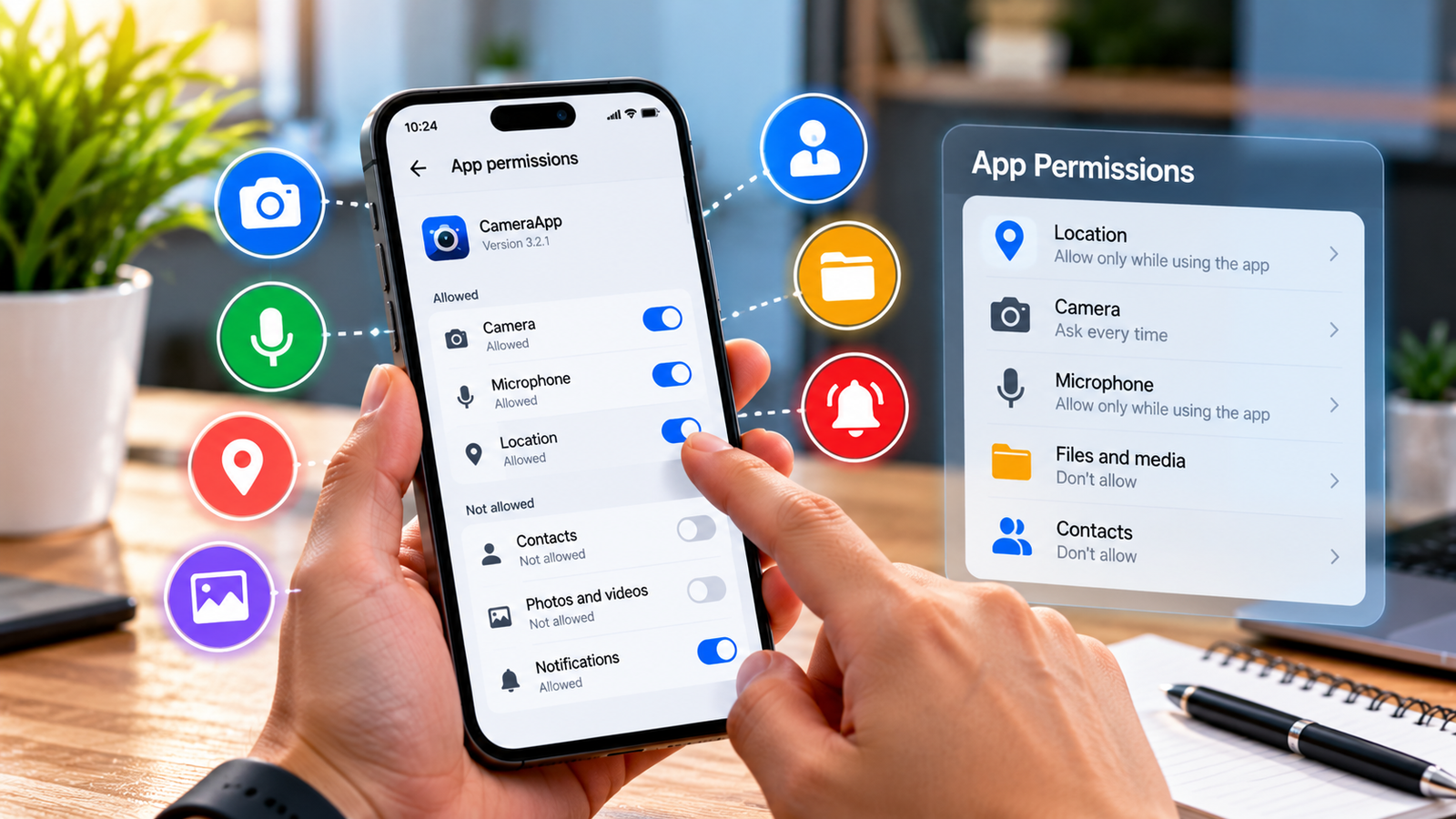
When you install or use an application, it may ask for permission to access certain parts of your device. Depending on the app and your operating system, these permissions can include:
- Location: Allows an app to access your device’s location.
- Camera: Allows an app to take photos or record videos.
- Microphone: Allows an app to capture audio.
- Contacts: Allows an app to access saved contact information.
- Photos and media: Allows an app to access pictures, videos, or other files.
- Notifications: Allows an app to send alerts and updates.
- Calendar: Allows an app to access calendar information.
- Bluetooth and nearby devices: Allows supported apps to connect with nearby accessories or devices.
- Files: Allows an app to access supported files or documents.
Not every application needs all these permissions. A video calling app may reasonably need camera and microphone access, while a basic calculator usually has no obvious reason to access your contacts or location.
Understanding this difference helps you make informed decisions about which permissions to allow.
Why Is Managing App Permissions Important?
Managing app permissions gives you greater control over your personal information. Without reviewing these settings, you might allow applications to access information that is not required for their main functions.
There are several reasons to check your permissions regularly.
Protect Your Personal Information
Your contacts, photographs, location history, and other information can reveal details about your daily life. Limiting unnecessary access helps reduce the amount of information an application can obtain through your device.
Improve Smartphone Privacy
Some apps may request permissions for features that are not essential to their purpose. Reviewing those requests allows you to decide whether the access is appropriate.
Reduce Unwanted Tracking
Location permissions can affect how accurately an application can determine where you are. Allowing location access only when necessary may help limit unnecessary location collection.
Improve Security
An application with unnecessary permissions may expose more information than you intended, especially if the application has poor security practices or becomes compromised.
Reducing permissions cannot guarantee that an app is safe, but it can limit the information and features available to it.
Maintain Better Control
When you understand which applications can use your camera, microphone, files, and other features, it becomes easier to manage your device according to your preferences.
How to Manage App Permissions on Android
Android smartphones allow you to manage permissions through the Settings application. Menu names can differ depending on the Android version and smartphone manufacturer, but the general process is similar.
Step 1: Open Your Smartphone Settings
Unlock your Android phone and open the Settings application.
Look for a section named Apps, Applications, Privacy, or Security and privacy. The exact wording depends on your device.
If you cannot find the correct option, use the search bar in Settings and enter a term such as “permissions” or “permission manager.”
Step 2: Select the Application
Open the Apps section and choose the application whose permissions you want to review.
You may see options such as App info, Permissions, Notifications, Mobile data, and Battery usage.
Tap Permissions to see which features and information the application can access.
Step 3: Review Each Permission
Check the permissions individually and consider whether they are necessary for the application’s main function.
For example, a navigation app may need location access to provide directions. A messaging app may need microphone access for voice messages or calls.
If an application has permission to access information that does not appear relevant, consider changing that setting.
Remember that an application may offer optional features that require additional permissions. If you disable a permission, some features may stop working until you enable it again.
Step 4: Change the Permission Setting
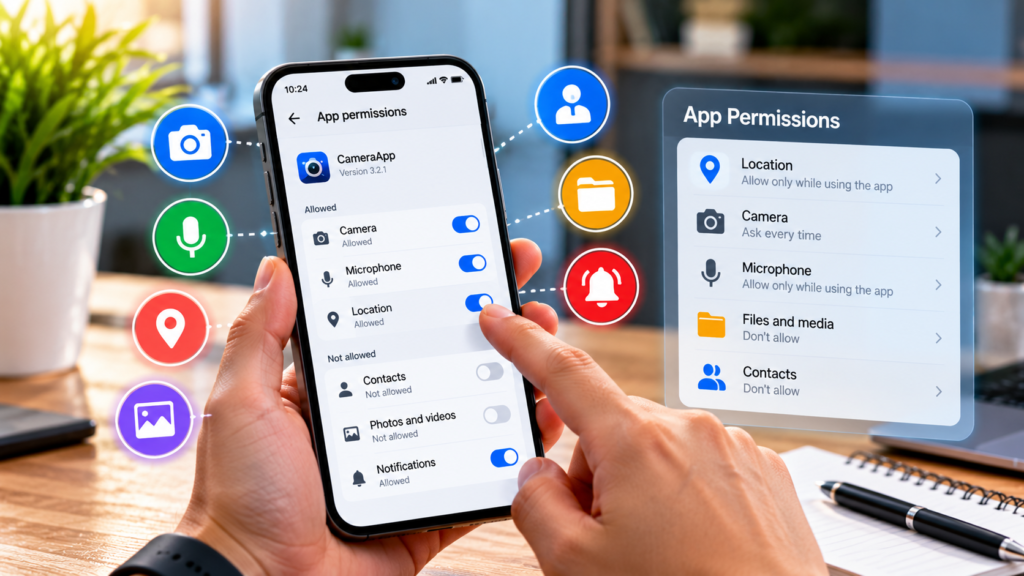
Depending on the permission and your Android version, you may see options such as:
- Allow only while using the app
- Ask every time
- Allow
- Don’t allow
Location permissions may also offer a precise or approximate location option.
Choose the least permissive setting that still allows the application to work as you need it to.
For example, you might allow a map application to access your location while using it rather than allowing continuous background access.
Step 5: Use Permission Manager
Android also provides a permission management feature on many devices.
Open Settings and search for Permission manager or Permission controls. From there, you can review applications that have access to particular features, such as the camera, microphone, contacts, or location.
This approach is useful when you want to review permissions across multiple applications instead of checking each app separately.
How to Manage App Permissions on an iPhone
Apple provides privacy settings that allow iPhone users to review and control application access to sensitive information and device features.
The available options may vary depending on your iOS version and the type of permission.
Step 1: Open the Settings App
Unlock your iPhone and open Settings.
Scroll through the available options or use the Settings search feature to find the privacy controls you need.
Step 2: Open Privacy and Security
Tap Privacy and Security to review access to features and information such as Location Services, Contacts, Photos, Microphone, Camera, Bluetooth, and other supported categories.
Select a category to see which applications have requested or received access.
Step 3: Review Location Services
Location access deserves particular attention because it can reveal where you live, work, study, or travel.
Open Location Services and select an application to review its available location settings.
Depending on the app and iOS version, you may be able to choose options such as Never, Ask Next Time or When I Share, While Using the App, or Always.
Choose the option that fits the application’s purpose. For example, a navigation app may need your location while you use it, whereas a simple note taking application may not need location access at all.
Some applications may also offer a Precise Location setting. Turning this off can allow approximate location access instead of more exact positioning.
Step 4: Review Camera and Microphone Access
Return to Privacy and Security and open the Camera section.
Review the applications that can use your camera and disable access for apps that do not need it.
Repeat the process for Microphone.
For example, a video conferencing app may need both permissions, but a basic calculator generally does not.
Be careful not to disable permissions that are necessary for features you regularly use.
Step 5: Check Photos, Contacts, and Other Data
Review access to Photos, Contacts, Calendars, Bluetooth, and other available categories.
For photo access, some applications may let you select specific pictures instead of allowing access to your entire photo library.
This can be a useful option when you only need to upload one picture to a social media platform or editing application.
Choose limited access whenever it meets your needs and is supported by the application.
Which App Permissions Should You Review First?
If you have never reviewed your smartphone permissions, start with the features that may expose sensitive personal information.
1. Location Permission
Location data can reveal information about your movements and daily routine. Review which applications have access to your location and whether they need it when running in the background.
For most applications, allowing location access only while using the app may be sufficient.
However, some services, such as navigation features that operate while the screen is locked, may need background access to work correctly.
2. Camera Permission
Camera access allows an application to take pictures or record videos when the operating system permits it.
Review camera permissions for social media, scanning, video calling, and photo editing applications. Disable access when it is not necessary.
3. Microphone Permission
Microphone access allows supported applications to record audio or provide voice related features.
Messaging apps, voice recorders, and video calling applications may need this permission. Other apps may not have a clear reason to use it.
On supported smartphones, privacy indicators can alert you when an application is using the microphone or camera.
4. Contacts Permission
Your contact list may contain names, phone numbers, email addresses, and other personal details.
Only grant contacts access when it supports a feature you actually want to use. If a service allows you to add contacts manually, you may not need to share your entire address book.
5. Photos and Files Permission
Photos and documents can contain private information, including personal pictures, identification documents, and work files.
When possible, select only the files an app needs rather than granting broader access.
6. Notifications Permission
Notifications can display private information on your lock screen, including message previews and account alerts.
Review which applications can send notifications and adjust sensitive previews if needed.
Although notification access is different from access to your files or camera, managing it can help protect your privacy when other people are near your device.
How to Decide Whether an App Really Needs a Permission
Before granting permission, consider what the application is designed to do.
Ask yourself three simple questions.
First, is the permission necessary for the app’s main purpose? A video calling app needs microphone access for voice calls, but a simple flashlight app usually does not need your contacts.
Second, can the feature work with limited access? A photo application may only need access to the images you select rather than your entire library.
Third, do you trust the developer and understand why the permission is requested? Review the application’s official description, privacy policy, and reputation if you are uncertain.
A permission request is not automatically suspicious. Some legitimate apps need several permissions to provide their features. The goal is to make an informed choice instead of automatically allowing every request.
Common App Permission Mistakes to Avoid
Many smartphone users grant permissions without reviewing them. Avoiding a few common mistakes can improve your privacy.
Allowing Every Permission Automatically
When an app requests access, take a moment to consider whether it is necessary. You can deny a permission and enable it later if a feature requires it.
Giving Permanent Location Access Without a Reason
Some applications may function correctly with location access limited to active use. Review background location access and disable it when it is unnecessary.
Ignoring Old Applications
Apps that you no longer use may still have permission settings on your device. Remove applications you do not need and review permissions for the ones you keep.
Assuming Every App Is Safe
An application available in an official app store is not automatically risk free. Download apps from trusted sources, check the developer, and review their requested permissions.
Disabling Permissions Without Testing Important Features
Removing a permission may cause a feature to stop working. If that happens, review the setting and decide whether the feature is important enough to justify granting access.
Forgetting to Review Permissions After Updates
Application features and operating system settings can change over time. Reviewing your permissions occasionally helps you maintain control as your smartphone use changes.
Extra Tips for Better Smartphone Privacy
Managing permissions is only one part of smartphone security. You can improve your protection by combining it with other good habits.
Keep your smartphone’s operating system and applications updated. Updates may address security weaknesses and improve privacy controls.
Use a strong screen lock, such as a secure PIN or a supported biometric method. Avoid installing applications from unknown websites or untrusted sources.
Delete apps that you no longer use, especially those that collect information without providing a useful service. Review privacy settings within individual applications as well, because some data collection preferences are controlled separately from operating system permissions.
On supported Android devices, Privacy Dashboard can help you review recent access to certain sensitive permissions. iPhone users can review App Privacy Report when the feature is available and enabled. These tools can provide additional information about how applications use certain device permissions or communicate with services.
Finally, read permission requests carefully and avoid sharing more information than necessary.
How Often Should You Check App Permissions?
There is no need to review every setting every day. However, checking your permissions every few months is a practical habit for many smartphone users.
You should also review permissions when installing a new application, after changing devices, or when an app begins requesting access that seems unrelated to its purpose.
If you notice unexpected camera or microphone activity, unfamiliar applications, or unusual account behavior, investigate promptly. Review the relevant permissions, remove apps you do not recognize, and check your device’s security settings.
A regular review helps you identify unnecessary access before it becomes a concern.
Conclusion
Learning how to manage app permissions on your smartphone is an important step toward better online privacy and security. Permissions determine which applications can access features such as your location, camera, microphone, contacts, photographs, and files.
In my opinion, the best approach is to grant permissions carefully, choose limited access when possible, and review your settings regularly. Android and iPhone both provide tools that help you control application access without giving up the features you need.
Remember that an application should have a clear reason for requesting access to sensitive information. If a permission seems unnecessary, deny it or choose a more limited option when available.
By combining sensible permission settings with regular software updates, trusted app downloads, and strong device security, you can enjoy the benefits of your smartphone while maintaining better control over your personal information.