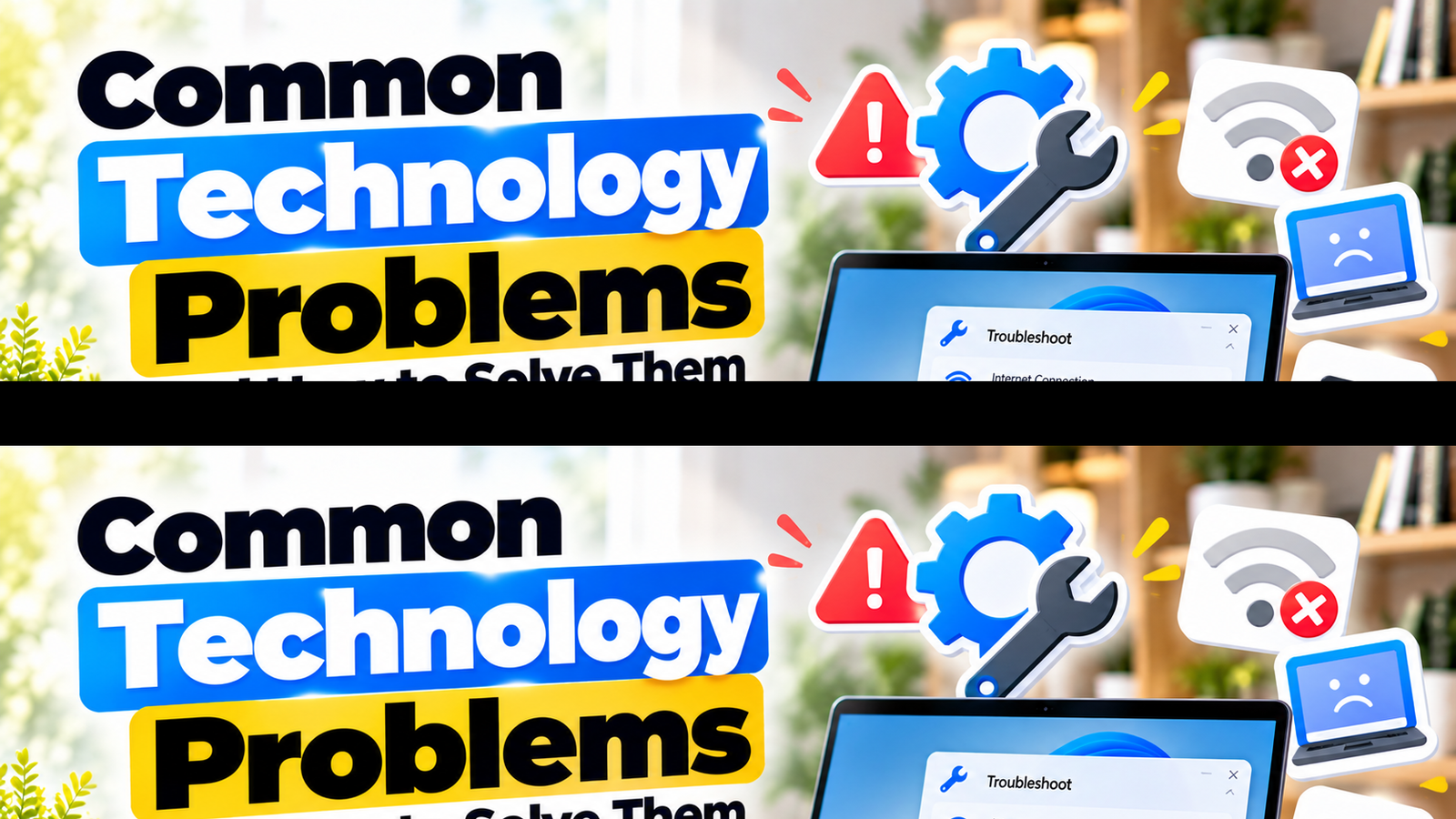
Technology has become an important part of everyday life. I use digital devices for communication, education, work, entertainment, online shopping, and managing personal information. Computers, smartphones, internet connections, and applications make many daily tasks easier. However, technical problems can sometimes interrupt these activities and create unnecessary frustration.
A computer may become slow, a phone may stop connecting to WiFi, an application may freeze, or an important file may become difficult to access. These problems can affect beginners and experienced users alike. Fortunately, many common technology problems can be solved with simple troubleshooting steps without immediately paying for professional repairs.
In this guide, I will explain common technology problems and how to solve them safely. These practical technology troubleshooting tips can help users identify the causes of everyday issues, improve device performance, and avoid common mistakes.
1. Slow Computer Performance
A slow computer is one of the most common technology problems. Applications may take longer to open, websites may respond slowly, and switching between programs may become frustrating.
There can be several reasons for this issue, including too many applications running in the background, limited memory, low storage space, outdated software, or malware.
When my computer becomes slow, I prefer to begin with simple troubleshooting steps instead of immediately installing optimization software.
First, restart the computer and check whether performance improves. Next, close applications that are not needed and review startup programs. On Windows, Task Manager can help identify applications that consume significant memory or processing power.
It is also useful to check available storage space and remove unnecessary files carefully. Install relevant system updates and use trusted security software to scan for malware if you notice unusual behavior.
If the computer remains slow, the problem may be related to hardware limitations. Upgrading to an SSD or adding compatible RAM can improve performance in suitable systems.
2. Internet Connection Not Working
An internet connection that suddenly stops working can interrupt online classes, work meetings, browsing, and communication.
The problem may originate from the router, modem, internet service provider, computer, or smartphone. Therefore, identifying where the connection fails is an important first step.
Start by checking whether other devices can access the internet. If every device is disconnected, the router or internet service may be responsible. If only one device has a problem, its network settings or wireless adapter may need attention.
Try these steps:
- Check whether WiFi is enabled on your device.
- Restart the router and modem if appropriate.
- Wait for the equipment to reconnect.
- Test another website or application.
- Check for an internet service outage with your provider.
If the connection remains unavailable, contact your internet service provider for assistance.
Avoid repeatedly resetting the router to factory settings unless necessary, because this can erase customized network settings.
3. Smartphone Battery Draining Quickly
Smartphone battery problems can make everyday activities inconvenient, especially when a charger is not available.
Battery drain may be caused by high screen brightness, demanding applications, background activity, weak mobile signals, location services, or an aging battery.
To improve battery life, I recommend reviewing the battery usage section in your phone’s settings. It can help identify which applications consume the most power.
Reduce screen brightness when possible, enable battery saver mode when needed, and close or restrict unnecessary background activity. You can also disable Bluetooth, GPS, or mobile hotspot features when you are not using them.
However, constantly force closing every application is not always helpful and may sometimes increase battery consumption when applications restart.
If the phone loses power unusually quickly even with limited use, check the battery health information if your device provides it. An older battery may need professional replacement.
Use a compatible charger and avoid exposing the phone to excessive heat, which can affect battery health over time.
4. WiFi Keeps Disconnecting
Frequent WiFi disconnections can interrupt video calls, online gaming, streaming, and file downloads.
Possible causes include weak wireless signals, router problems, interference, outdated network drivers, or incorrect network settings.
First, move closer to the router and see whether the connection becomes more stable. Thick walls, large furniture, and interference from other electronic devices can reduce wireless signal quality.
Restart the router and your device. If the problem continues on a Windows computer, check whether a network adapter driver update is available through Windows Update or the computer manufacturer’s official support website.
You can also forget the WiFi network and reconnect by entering the password again.
If multiple devices experience the same problem, investigate the router or contact your internet provider. If only one device disconnects, focus on that device’s wireless settings and software.
5. Applications Freezing or Crashing
Applications may freeze, stop responding, or close unexpectedly. This can happen because of software bugs, insufficient system resources, corrupted application files, or compatibility problems.
When an application freezes, give it a short time to respond before taking further action. If it remains unresponsive, close it using the normal exit option or the operating system’s task manager.
Save your work frequently whenever possible to reduce the risk of losing information.
Next, check whether an update is available for the application. Restarting the device can also resolve temporary problems.
If the issue continues, check the application’s storage and permission settings. On some devices, clearing an application’s cache may help resolve certain problems. Be careful when clearing app data because it may remove local settings or information.
If the application repeatedly crashes, uninstalling and reinstalling it may help. Before doing so, confirm that important files and account information are backed up.
6. Computer Running Out of Storage Space
Low storage space can prevent users from downloading files, installing updates, or saving new documents.
This problem often develops gradually as downloads, photographs, videos, applications, and temporary files accumulate.
To check storage usage in Windows 11, open Settings, select System, and then choose Storage. Review which categories occupy the most space.
Remove files you no longer need, uninstall unused applications, and move large personal files to suitable external storage if necessary.
You can also use Storage Sense to manage certain temporary files automatically.
Before deleting files, review them carefully. Avoid removing unfamiliar system folders because they may be required for Windows or installed applications.
If you regularly work with large video files or extensive photo collections, consider adding storage rather than repeatedly deleting useful data.
7. Smartphone Not Charging Properly
A smartphone that charges slowly or does not charge at all can be difficult to troubleshoot because the problem may involve the charger, cable, power outlet, charging port, or battery.
Begin by testing a compatible charger and cable that you know work correctly. Try another suitable power outlet and inspect the charging cable for visible damage.
Check the charging port for visible dust or debris, but do not insert metal